Move an Aternos world to JetRift: a safe test migration
Download your Java world from Aternos, upload the ZIP in JetRift’s Worlds tab, then select it and test a copy. Keep the Aternos original until you have checked builds, dimensions and inventories. Importing files does not guarantee every mechanic or modded block will work.
Check whether the world can move
- Java Anvil world: a normal Java save contains
level.datand region files. This is the format to start with. - Bedrock world: a
.mcworldexport or Bedrock LevelDB folder is not a Java world. Renaming it to ZIP does not convert it. JetRift’s crossplay support does not convert Bedrock world files. - Mods and plugins: JetRift cannot load Forge, Fabric, Paper or Spigot extensions. A world with modded blocks, custom items or plugin-owned storage needs a separate migration plan; choose a host for that software if the content matters.
- Versions: JetRift currently supports Java 26.3 and Bedrock 26.60 clients. Do not assume a world from a newer release can safely be downgraded.
1. Keep an untouched export
- Ask everyone to leave and save the current world. Use Aternos’s Worlds page to download the relevant world. An account with shared access needs the Worlds permission.
- Stop changes on the old server while taking your final export. Keep the downloaded ZIP somewhere separate from the files you will edit.
- If your server has multiple worlds or separate dimension folders, download all the needed saves. A single overworld export may not contain everything.
- Open a working copy of the archive and find
level.dat. A Java world normally hasregion/, withDIM-1/andDIM1/for the Nether and End when present.
Aternos documents its world-download button in Keep your world safe. Its panel may change. We verified JetRift’s import flow; this guide is not a claim that we tested an export from your Aternos account.
2. Check the dimension layout
Paper/Bukkit setups can store dimensions in sibling folders such as world_nether/DIM-1 and world_the_end/DIM1. A single Java world folder usually stores DIM-1 and DIM1 beside level.dat. On a copy, inspect the actual files before packaging them. Do not overwrite an existing dimension folder or merge two different worlds blindly.
Keep playerdata/ and other save folders with the world when present. Plugin configuration and plugin databases are not the same as world data. If you are unsure which folders contain your builds, test them locally or ask for help before changing the only copy.
3. Upload the copy in JetRift
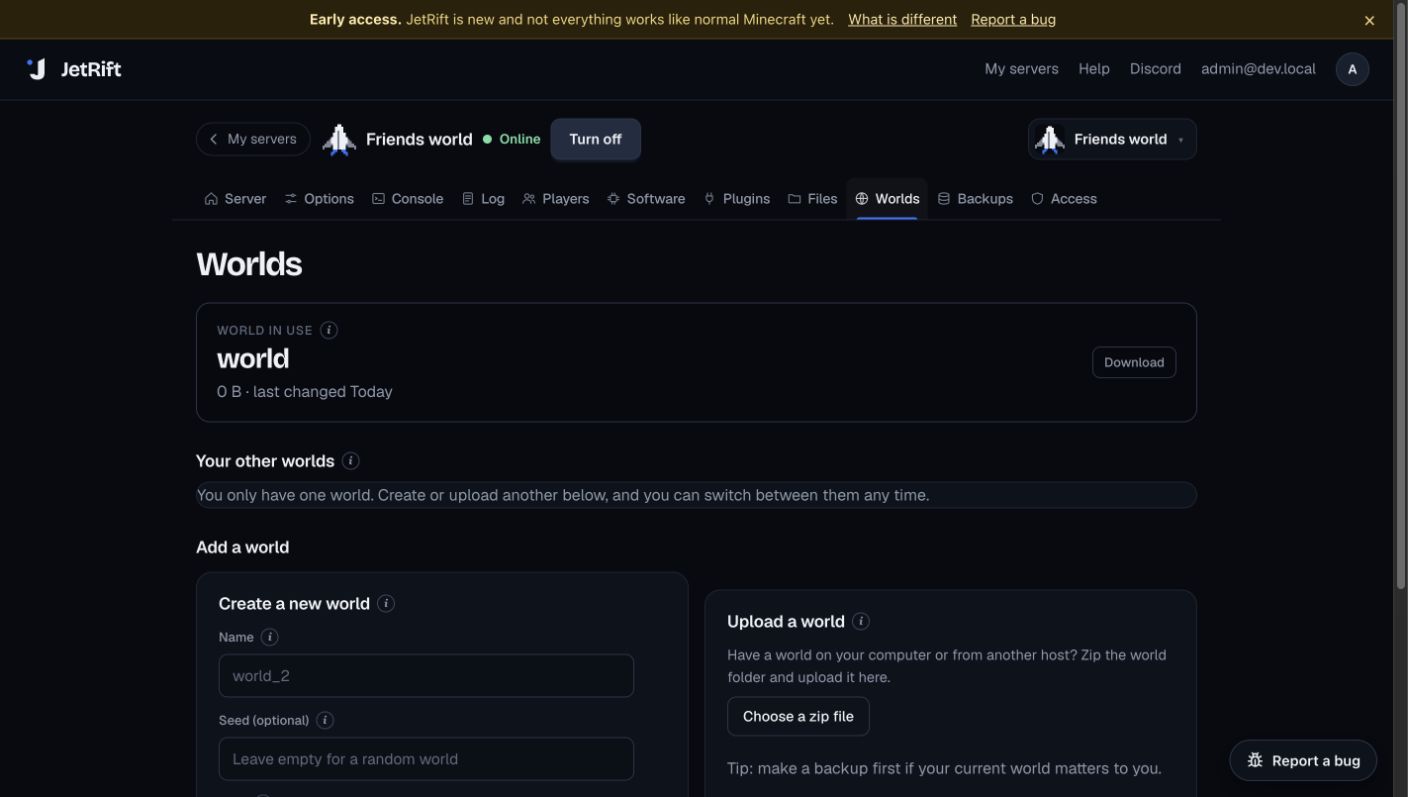
- Create a JetRift server, open its dashboard and choose Worlds.
- Under Upload a world, choose the ZIP file. Use a simple filename such as
friends-world.zip; the name is used for the imported world. - Wait for the upload and validation to finish. The archive must include a Java world with
level.dat. - Find the imported world in the list and select Switch to this world. Follow the dashboard state; if the server was manually stopped, start it.
- Copy the join details and connect with a supported client. Add friends to the whitelist again as needed.
4. Check before inviting the whole group
- Visit spawn and several important builds, including negative coordinates.
- Enter the Nether and End and check the expected locations and portals.
- Check inventories, ender chests, pets and permissions with the people who own them.
- Test farms, redstone and any features your group relies on. JetRift is early access and engine behavior can differ.
- Download a backup of the tested world and set up optional backups before continuing regular play.
Player data is keyed by identity. Switching authentication modes, Java accounts or crossplay identities can produce a different inventory. Bedrock and Java identities on JetRift are separate; matching a visible name does not guarantee matching UUIDs. Keep the original player data and avoid editing UUID filenames without a verified mapping.
If anything is missing
Stop the test, preserve its logs and return to the original host and untouched save. Report which dimension, location or item is missing. Do not keep playing on two divergent copies and expect them to merge later.
Compatibility and limits · General world migration · Invite Java and Bedrock friends